Connecting with multiple iPhone or iPad devices

Each remote control app — including Shutter — needs to be registered as a new smartphone device on your Canon camera. If you already use Shutter on your iPhone and want to add your iPad (or vice versa), you’ll need to go through the connection setup again for the second device. If you try to connect with the camera using a configuration of another app, the camera will reject the connection.

The exact steps depend on your camera model. Open your camera’s Menu and find the tab with network (wireless) options:


Cameras with a zig-zag icon for network functions e.g. Canon EOS R6 Mark II, PowerShot V1

We recommend using Bluetooth on your most-used device (e.g. your iPhone) for the most seamless experience — the camera will automatically establish a Wi-Fi connection when you open Shutter. Your second device (e.g. iPad) connects via Wi-Fi only.

On these cameras, Bluetooth and Wi-Fi connections are added separately.

Setting up your main remote (Bluetooth + Wi-Fi)

Follow these steps on your most used iOS device (e.g. iPhone). Only one device can be paired via Bluetooth.

  1. On the camera, go to Menu → Network function tab → Connect to smartphone(tablet).
  2. Select Add a device to connect to.
  3. The camera may prompt you to enable Bluetooth — select OK.
  4. Press SET to begin pairing.
  5. Open Shutter app and follow the Add camera → Wireless (Wi-Fi + Bluetooth) guide. The camera name will appear — tap it to pair.
  6. Confirm the Bluetooth pairing dialog on your iPhone.
  7. Press SET on the camera to complete pairing.

When you use Shutter, the camera will automatically set up a Wi-Fi connection on top of Bluetooth.

Reconnecting your main remote (Bluetooth + Wi-Fi)

With Bluetooth, reconnection is automatic. Simply turn on the camera, open Shutter app on your device and select Remote Control or Photo Import to connect.

Setting up your secondary remote (Wi-Fi only)

Follow these steps on all of your additional iOS devices (e.g. iPad or family member’s iPhone).

The camera can only be Bluetooth-paired with one device at a time, so the second device connects via Wi-Fi.

  1. On the camera, go to Menu → Network function tab → Advanced connection → Connect to smartphone(tablet).
  2. Select Add a device to connect to.
  3. Press SET to skip the QR code.
  4. Select Camera access point mode.
  5. The camera will display an SSID and password.
  6. Open Shutter app and follow the Add camera → Wireless (Wi-Fi only) guide.
  7. Scan the SSID and password displayed on the camera with Shutter and confirm Wi-Fi connection.

Reconnecting your secondary remote (Wi-Fi only)
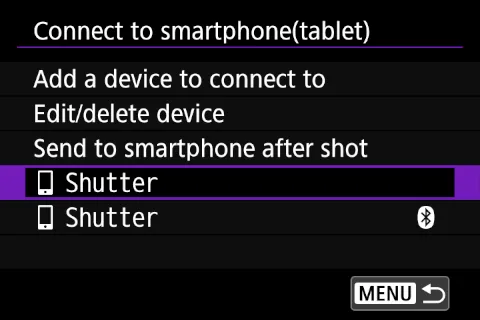
Connect to smartphone menu on Canon EOS camera with two Shutter apps visible. One with a Bluetooth logo and one without.
To connect from your secondary device (Wi-Fi only connection), select Shutter option without the Bluetooth logo before attempting to connect from the app.
  1. On the camera, go to Menu → Network function tab → Connect to smartphone(tablet).
  2. Select [Shutter] option without the Bluetooth logo next to it. The camera will start a Wi-Fi connection.
  3. Open Shutter app on your device and select Remote Control or Photo Import to connect.

Cameras with an antenna icon for the network tab e.g. Canon EOS R6, EOS 850D

We recommend using Bluetooth on your most-used device (e.g. your iPhone) for the most seamless experience — the camera will automatically establish a Wi-Fi connection when you open Shutter. Your second device (e.g. iPad) connects via Wi-Fi only.

On these cameras, Bluetooth and Wi-Fi connections are added separately.

Setting up your main remote (Bluetooth + Wi-Fi)

  1. On the camera, go to Menu → Network tab → Wi-Fi/Bluetooth connection → Connect to smartphone.
  2. Select Add a device to connect to.
  3. If asked about Camera Connect, select Do not display.
  4. Select Pair via Bluetooth and press SET.
  5. On your iPhone, open Shutter. The camera name will appear — tap it to pair.
  6. Confirm the Bluetooth pairing dialog on your iPhone.
  7. Press SET on the camera to complete pairing.

When you use Shutter, the camera will automatically set up a Wi-Fi connection on top of Bluetooth.

Reconnecting your main remote (Bluetooth + Wi-Fi)

With Bluetooth, reconnection is automatic. Simply turn on the camera, open Shutter app on your device and select Remote Control or Photo Import to connect.

Setting up your secondary remote (Wi-Fi only)

Follow these steps on all of your additional iOS devices (e.g. iPad or family member’s iPhone).

The camera can only be Bluetooth-paired with one device at a time, so the second device connects via Wi-Fi.

  1. On the camera, go to Menu → Network tab → Wi-Fi/Bluetooth connection → Connect to smartphone.
  2. Select Add a device to connect to.
  3. If asked about Camera Connect, select Do not display.
  4. Select Connect via Wi-Fi (not “Pair via Bluetooth”).
  5. The camera will display an SSID and password.
  6. On your iPad, go to Settings → Wi-Fi, find the camera’s SSID, and enter the password.
  7. Open Shutter on your iPad.

Reconnecting your secondary remote (Wi-Fi only)

  1. On the camera, go to Menu → Network tab → Wi-Fi/Bluetooth connection → Connect to smartphone.
  2. Select Shutter option. Confirm if asked to connect without Bluetooth. The camera will start a Wi-Fi connection.
  3. Open Shutter app on your device and select Remote Control or Photo Import to connect.

Cameras with network functions under a wrench icon e.g. Canon EOS Rebel T7, EOS 6D

These cameras store connections in numbered SET slots (up to 3). You should create a single SET associated with Shutter and reuse it across your iPhone and iPad.

Setting up your iPhone

  1. On the camera, go to Menu → Wi-Fi function → Connect to smartphone.
  2. Select Register a device for connection.
  3. If asked about Camera Connect, select Do not display.
  4. Select Easy connection. The camera will display an SSID (network name) and password.
  5. On your iPhone, go to Settings → Wi-Fi, find the camera’s SSID, and enter the password.
  6. Open Shutter on your iPhone.
  7. On the camera, confirm the connection when prompted.

The camera saves this as SET1.

Reconnecting your iPhone

  1. On the camera, go to Menu → Wi-Fi function → Connect to smartphone.
  2. Select Choose set. and pick the SET you created for Shutter (e.g. SET1).
  3. On your iPhone, go to Settings → Wi-Fi and connect to the camera’s network.
  4. Open Shutter.

Setting up your iPad

You don’t need a separate SET slot. Reuse the same SET you created for your iPhone:

  1. On the camera, go to Menu → Wi-Fi function → Connect to smartphone.
  2. Select Choose set. and pick the SET you created for Shutter (e.g. SET1).
  3. The camera will display the SSID and password.
  4. On your iPad, go to Settings → Wi-Fi, find the camera’s SSID, and enter the password.
  5. Open Shutter on your iPad.

Reconnecting your iPad

  1. On the camera, go to Menu → Wi-Fi function → Connect to smartphone.
  2. Select Choose set. and pick the SET you created for Shutter (e.g. SET1).
  3. On your iPad, go to Settings → Wi-Fi and connect to the camera’s network.
  4. Open Shutter.

Tips

  • Only one device at a time. Only one iPhone or iPad can control the camera at any given time.
  • Use Bluetooth on your main device. If your camera supports Bluetooth, pair it with the device you use most often. Bluetooth enables automatic reconnection — you just open Shutter and it connects.
  • Wi-Fi connections work on all devices. The “Connect via Wi-Fi” path works on both iPhone and iPad and doesn’t require Bluetooth.