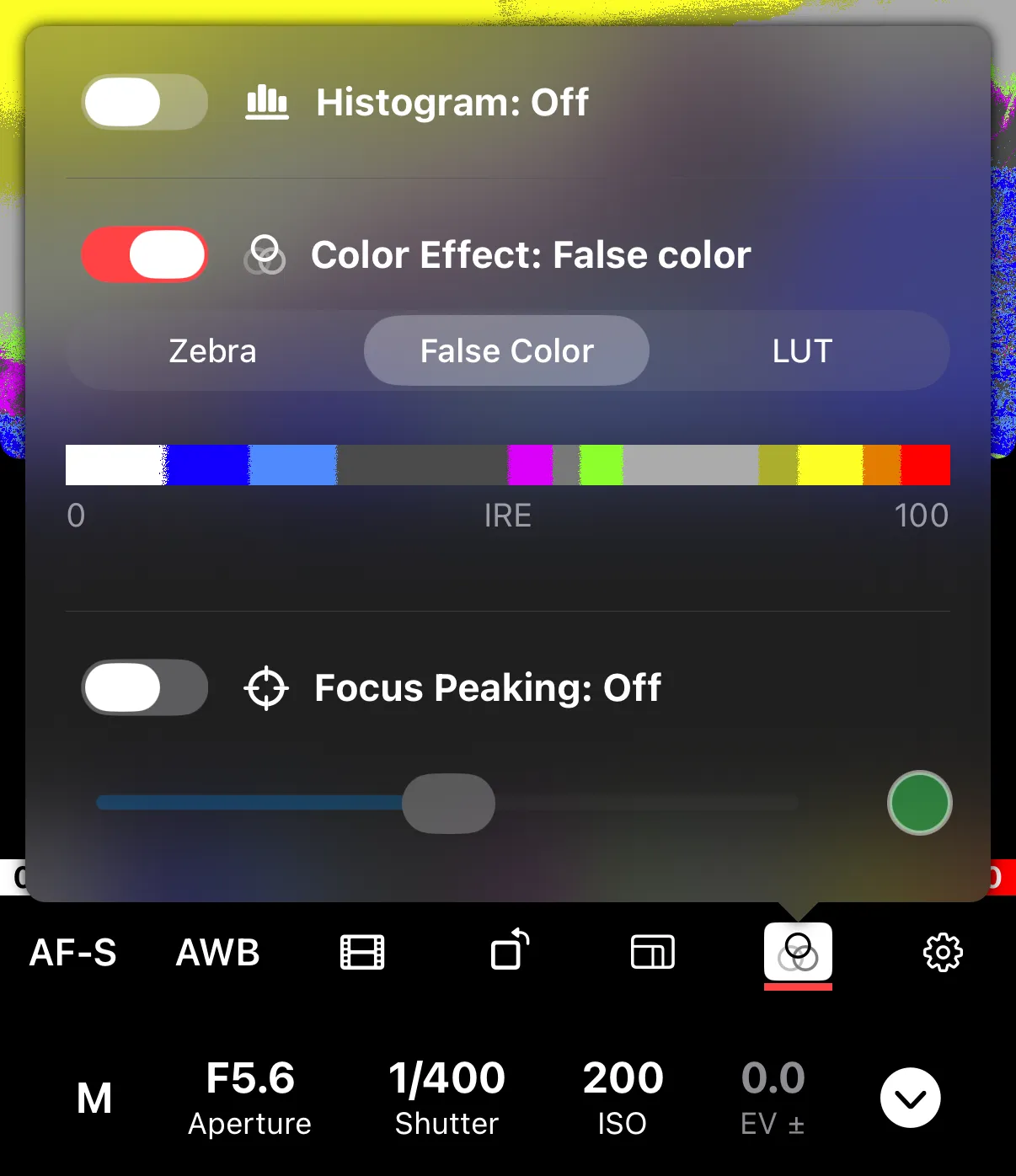
False Color
False color replaces the live view image with a color-coded map of exposure levels. Each color represents a different brightness zone, from underexposed to overexposed.
This gives you a quick visual overview of how exposure is distributed across the frame — useful for video work and scenes with tricky lighting.
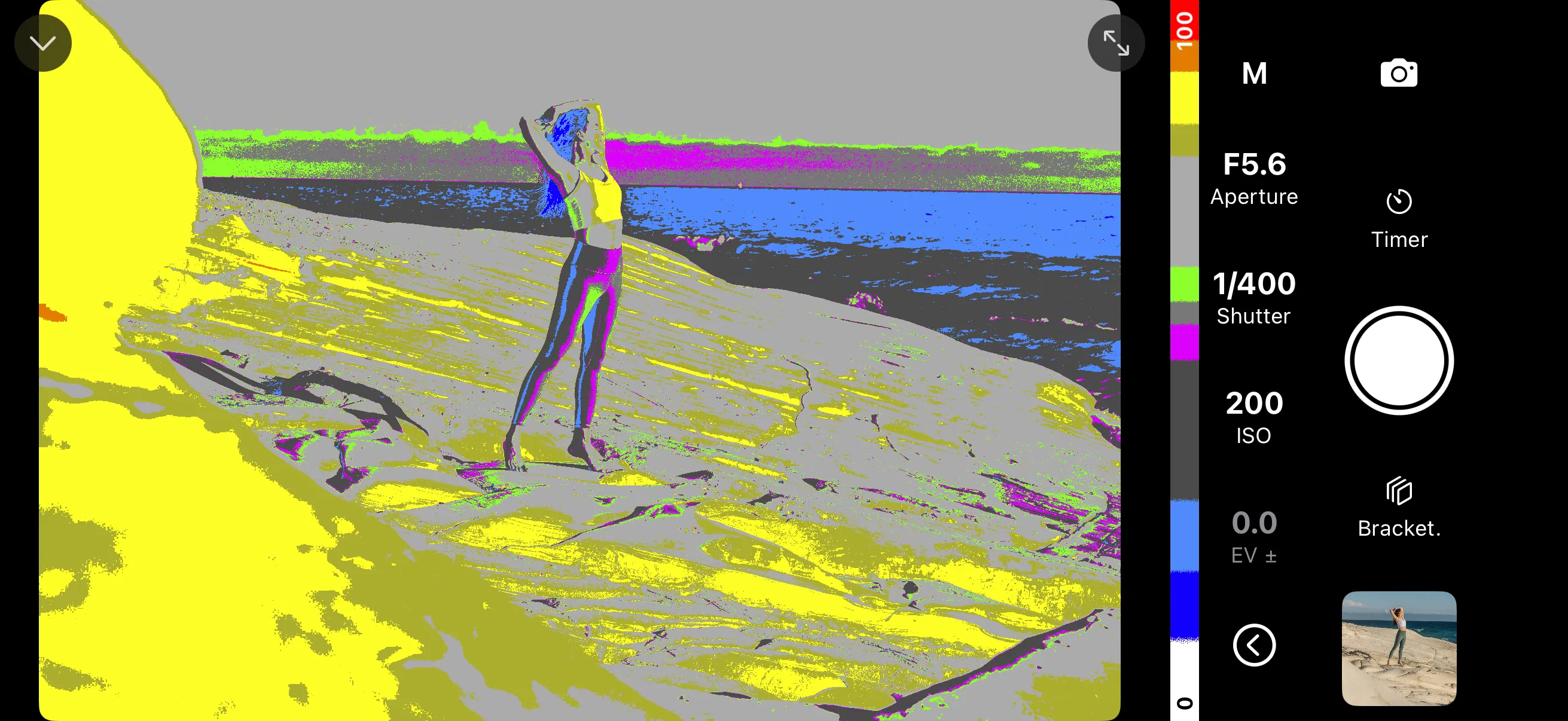
How to Read It
The false color scale runs from 0 to 100 IRE. Dark areas appear in cool colors (blues and greens) and bright areas appear in warm colors (yellows and reds). Properly exposed skin tones and midtones fall in the middle of the scale.
When False Color is enabled, a brightness scale is displayed next to the live view.
Enabling False Color
Open the exposure aids settings and select False Color as the color effect. Only one color effect can be active at a time.
False color does not affect the captured image.