Overview
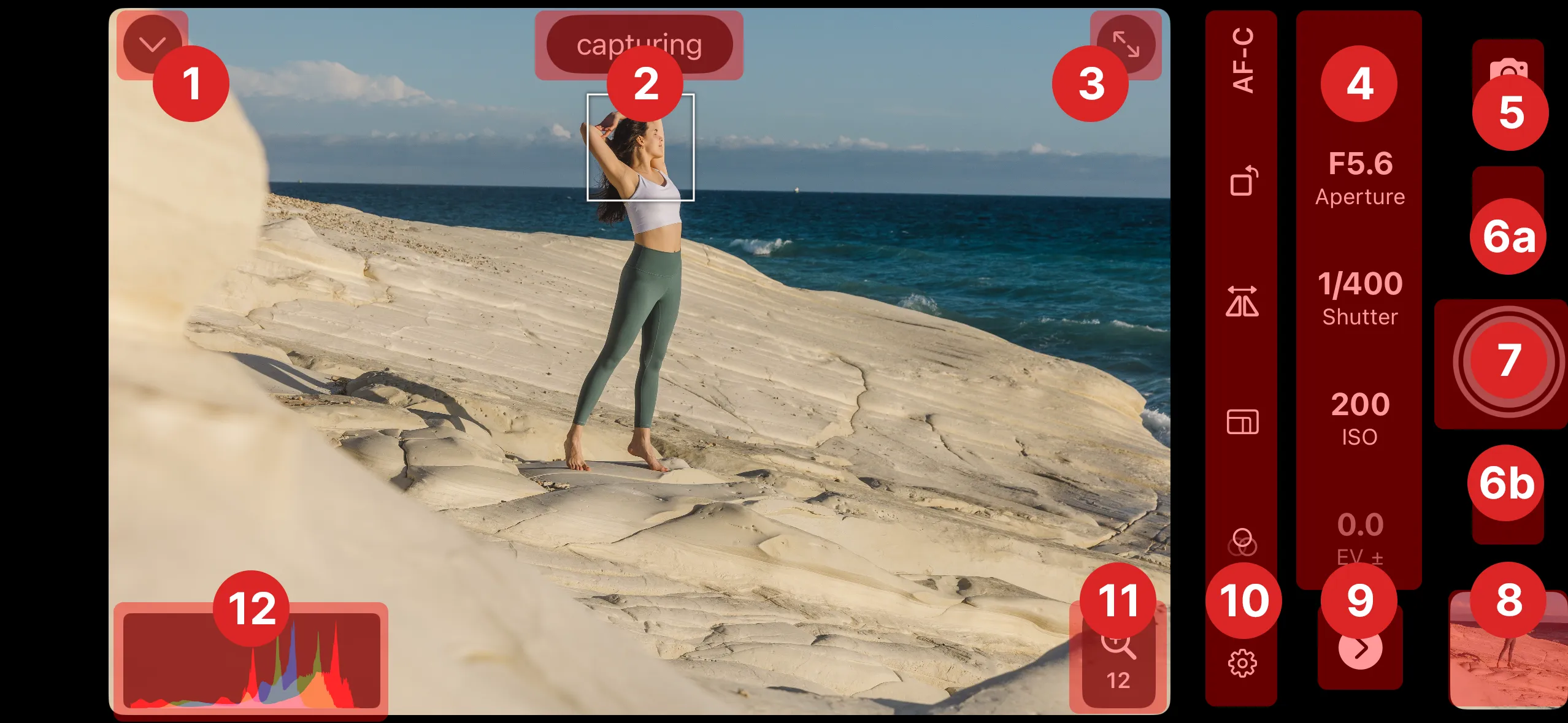
The remote control screen has several areas:
- Back button - go back to the saved cameras list to disconnect, start photo import or connect with another camera.
- Status indicator - shows current camera status while shooting (e.g. focusing, capturing, BULB countdown etc.)
- Full-screen button - toggles full-screen mode.
- Exposure controls - control camera exposure.
- Shoot mode selector - switch between photo and video, and choose photo drive mode.
- Automation menu - access automation tools such as intervalometer or bracketing.
- Shutter release button - capture photo, start/stop video recording or start an automation.
- Photo preview - quick access to recently captured photos.
- Additional controls toggle - show/hide additional controls (see below).
- Additional controls - access to focus settings, composition tools, exposure aids, and app settings.
- Zoom and tap to focus controls - zoom in and out or change tap to focus modes.
- Histogram - histogram area.
The screen works in both portrait and landscape orientation. Controls rearrange automatically to fit the screen.
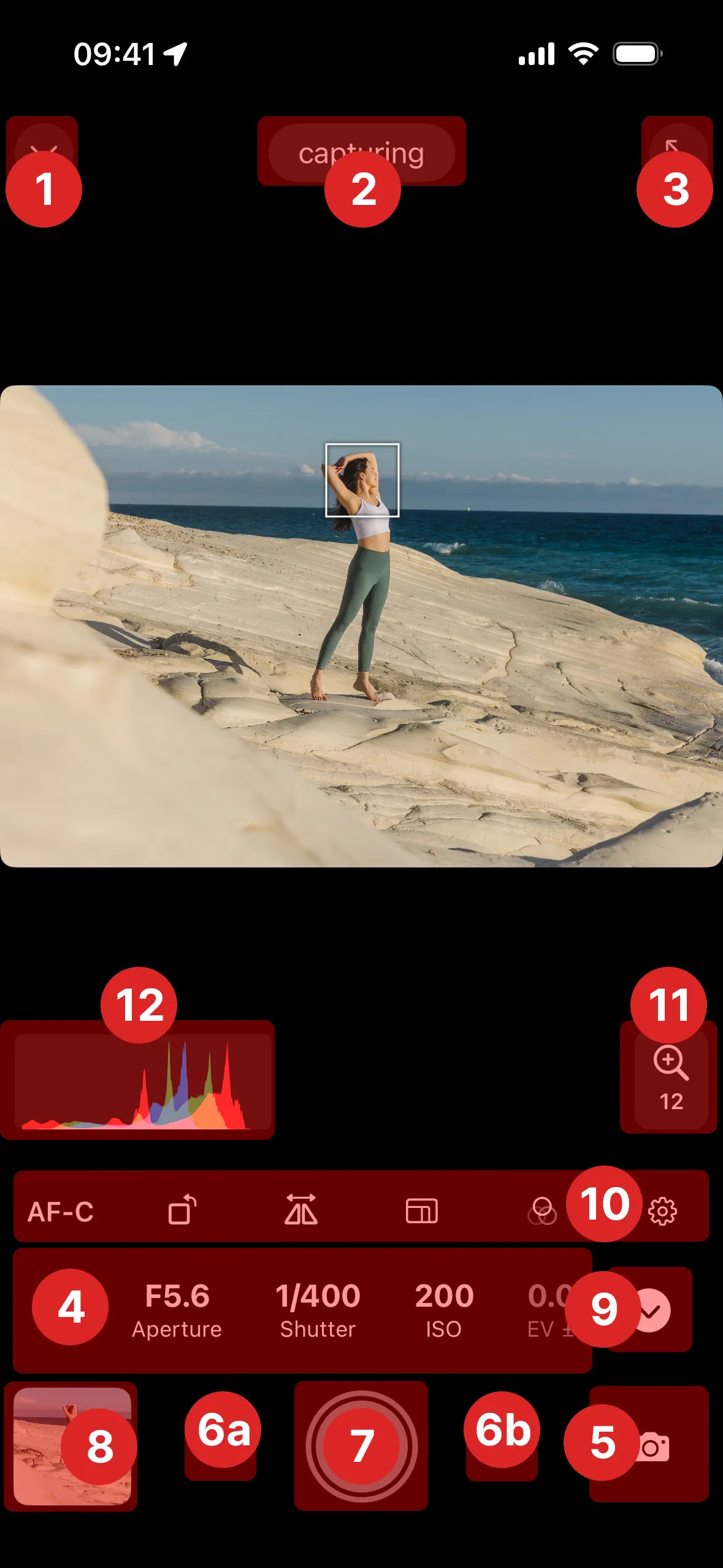
Which settings are available depends on your camera model and the current exposure mode. Controls that don’t apply to the current state are hidden or shown as read-only.