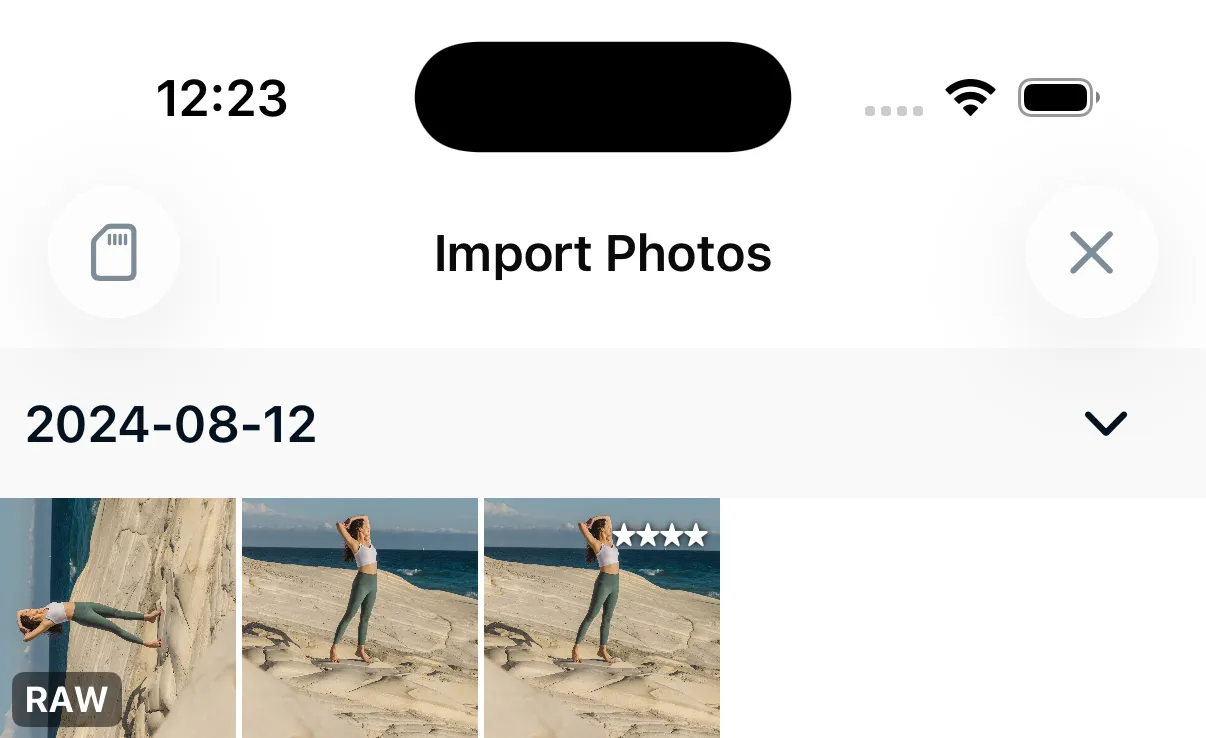
Browsing Camera Storage
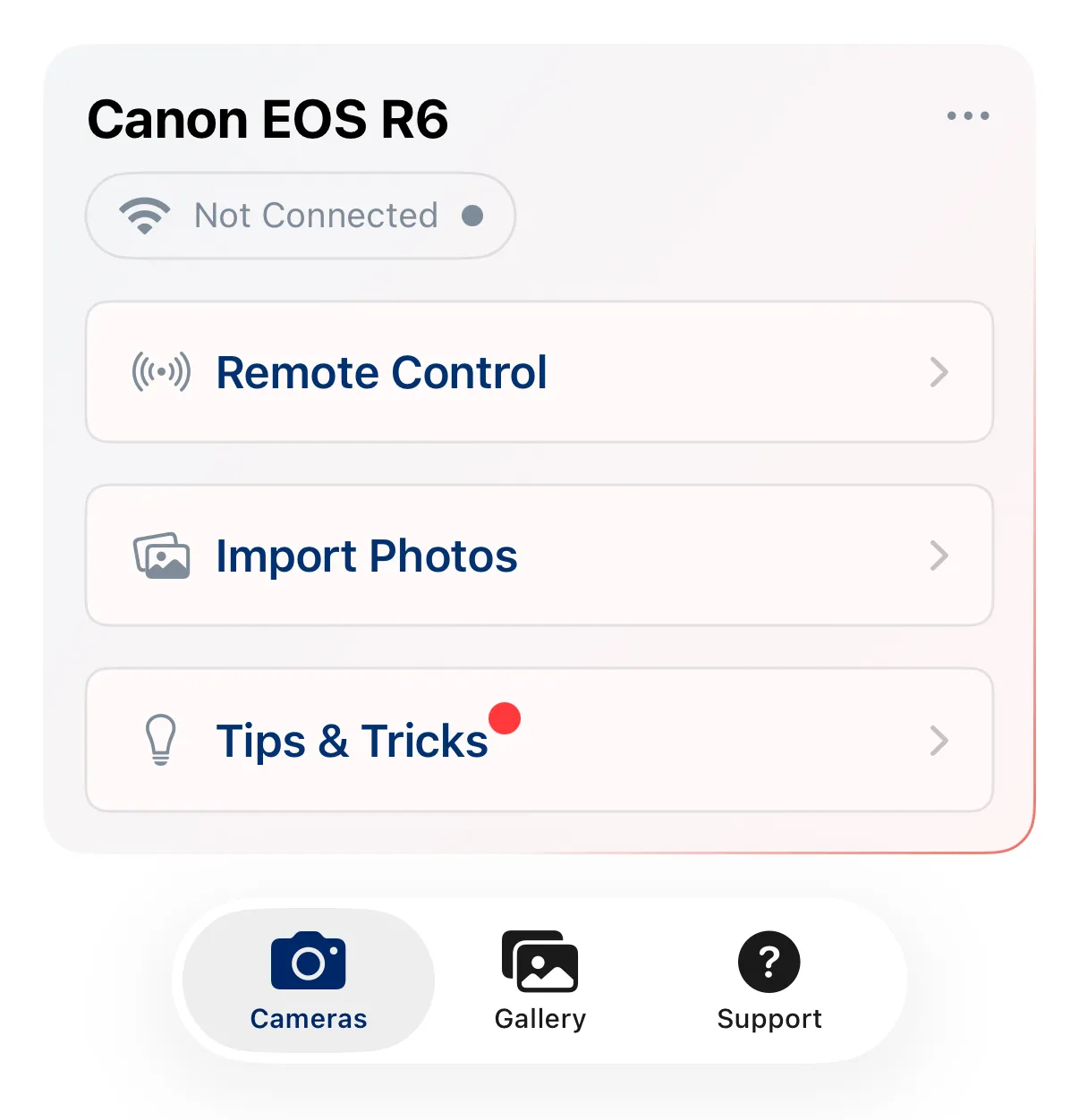
Open Import Photos from the saved cameras screen to browse photos stored on your camera’s memory card.
Thumbnails and Preview
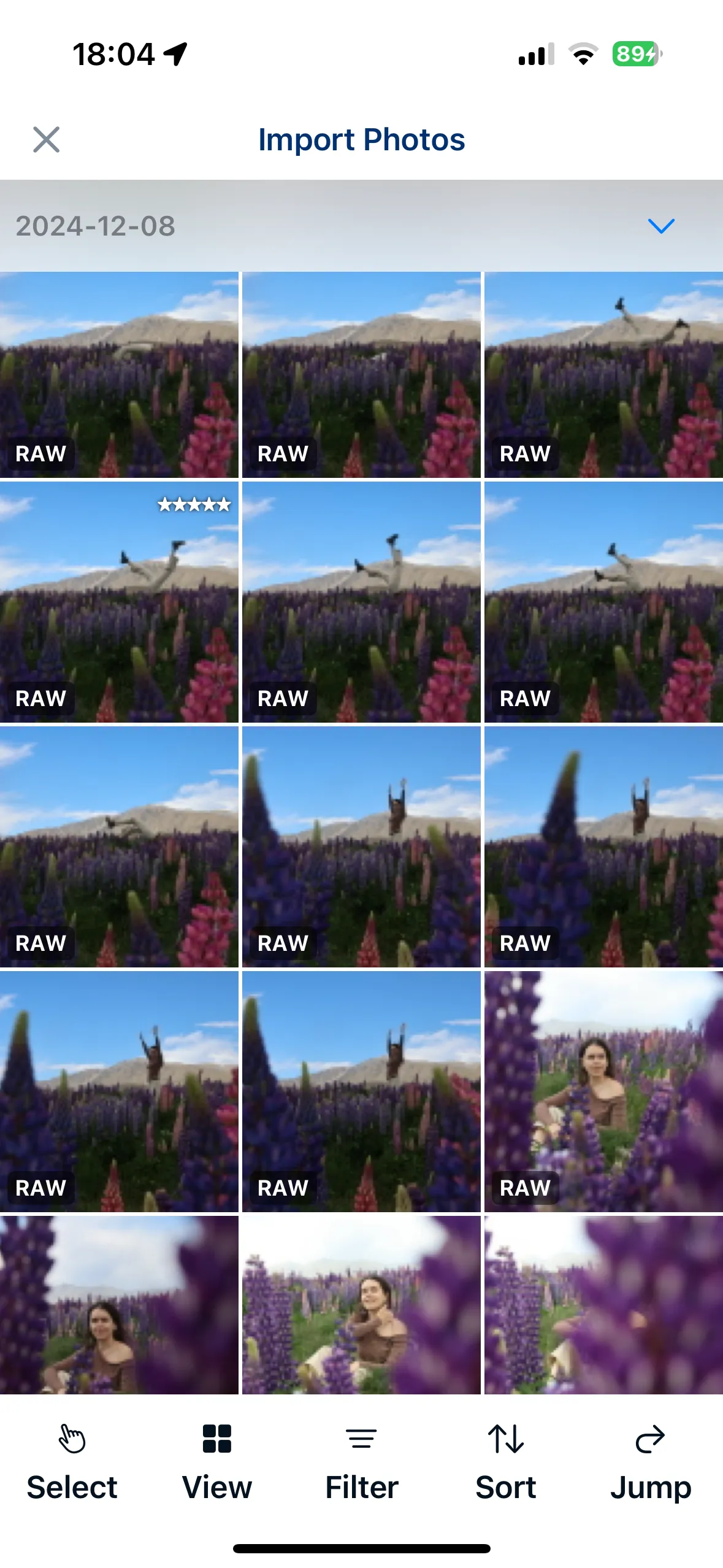
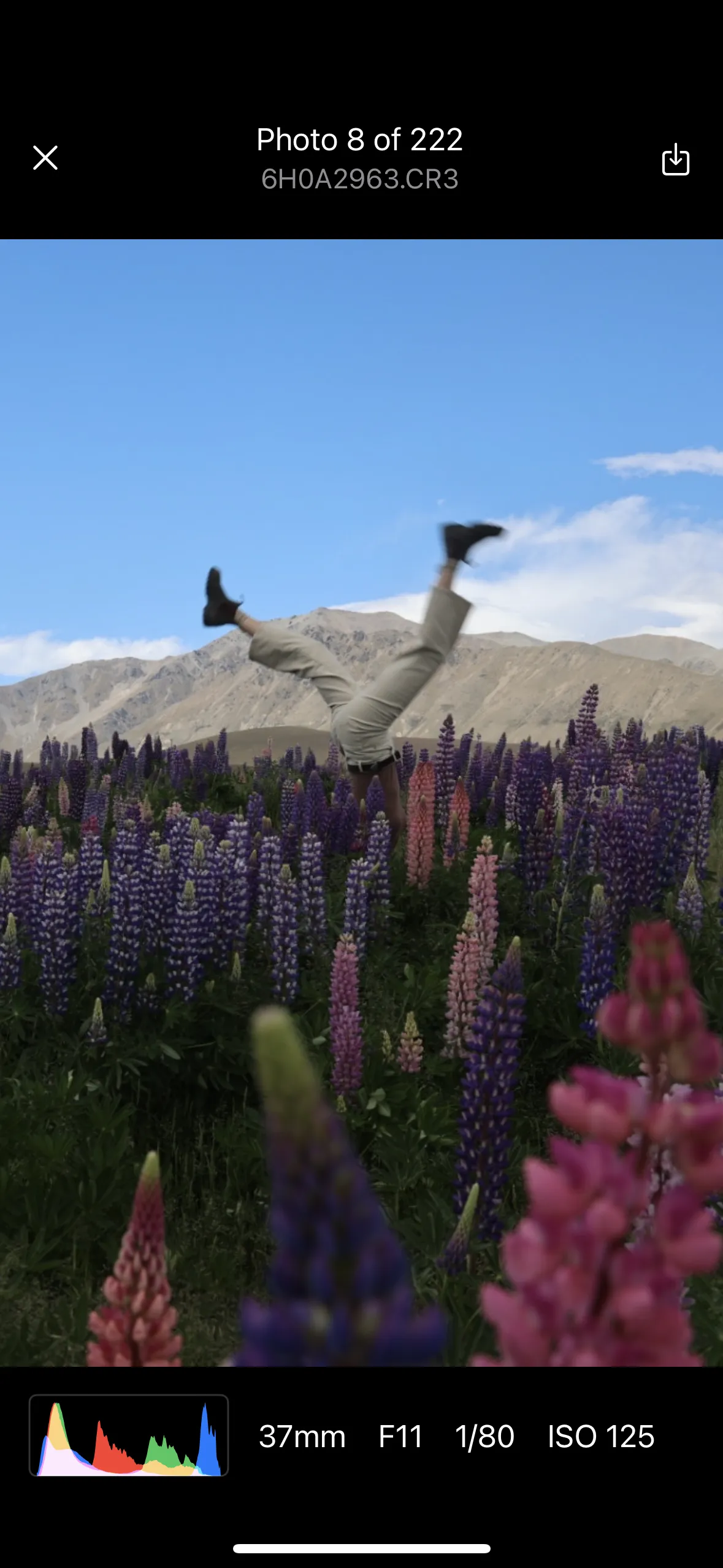
Photos are displayed as a thumbnail grid. Tap a photo to open a full-screen preview with pinch-to-zoom.
In full-screen preview, you can view a histogram and EXIF data — exposure settings, and lens info.
View preferences
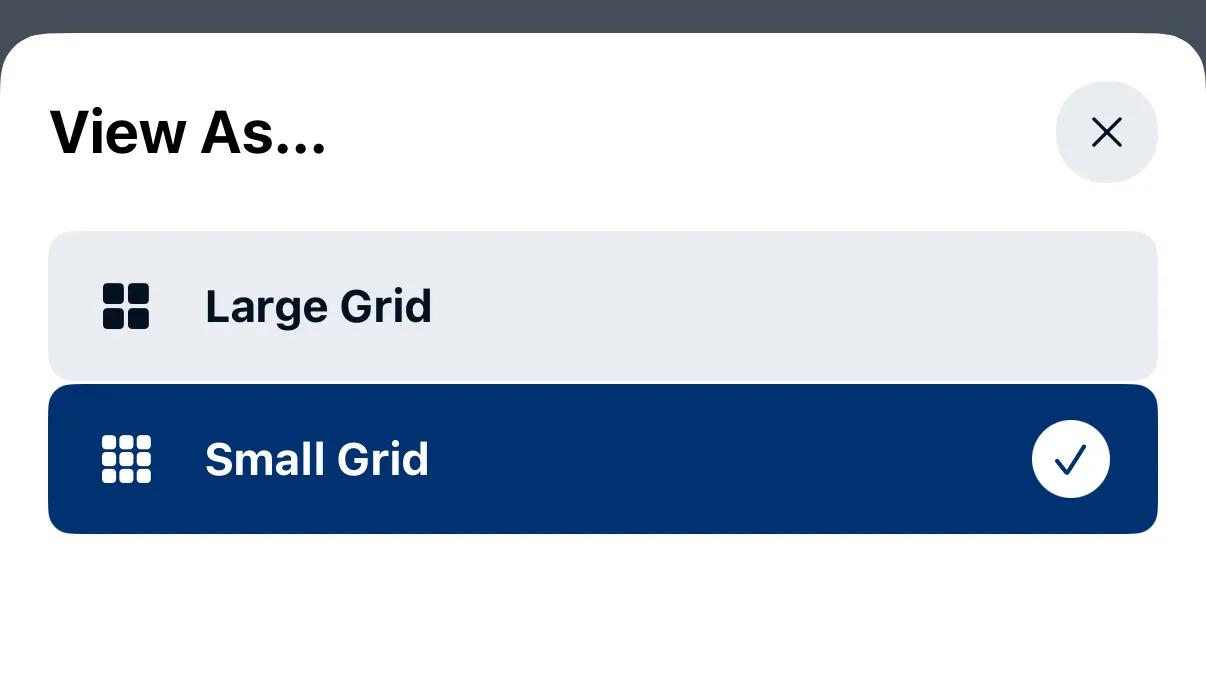
Tap on the View button in the bottom toolbar to manage view preferences:
- Large Grid - 3 photos per row on an iPhone screen
- Small Grid - 5 photos per row on an iPhone screen
Sorting
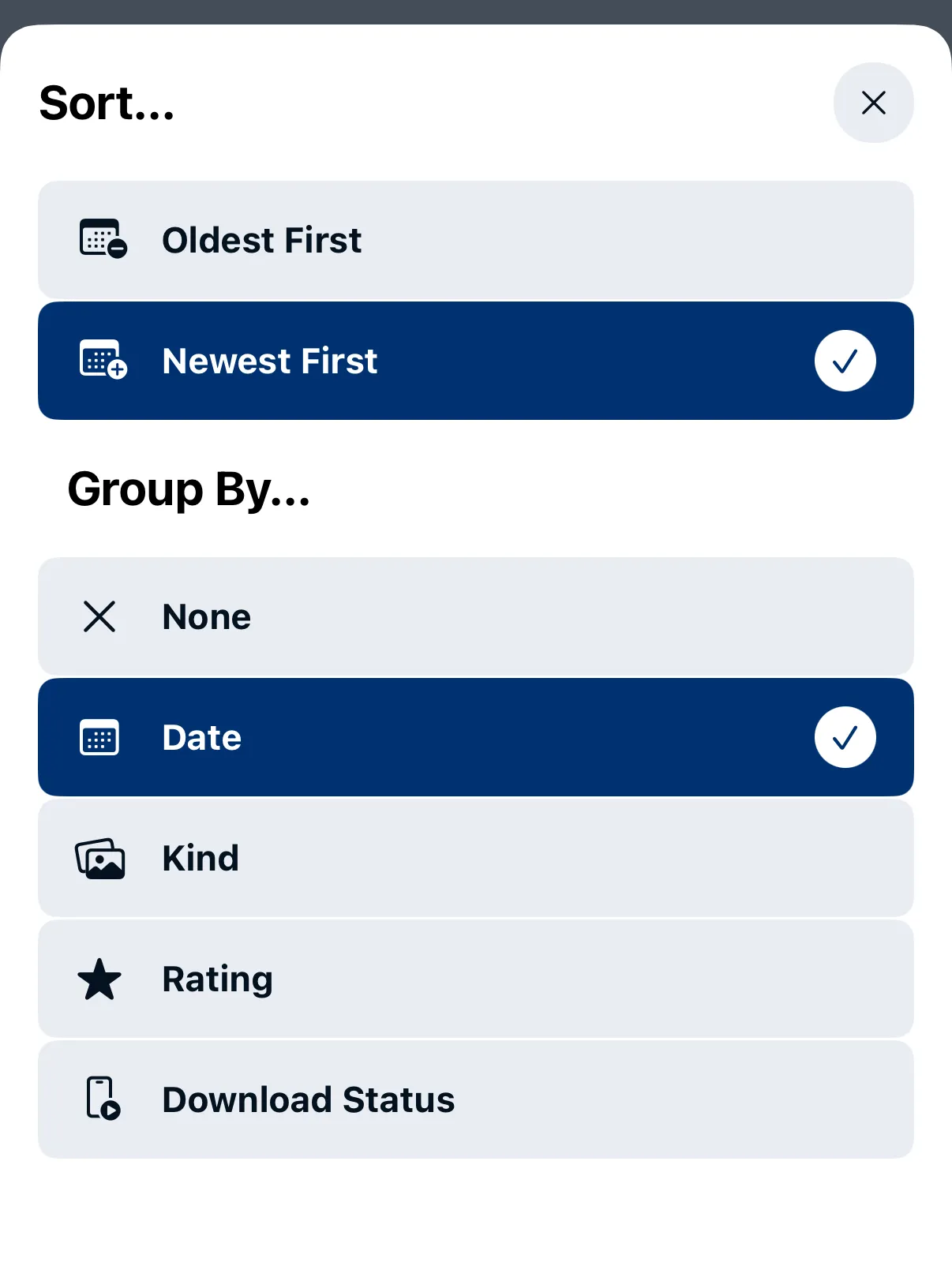
Use the sort tool to organize the gallery:
- Sort direction — oldest or newest photos first.
- Group by — organize photos by dates, rating, kind (JPEG, RAW, video) or download status (downloaded or not).
Navigating Large Collections
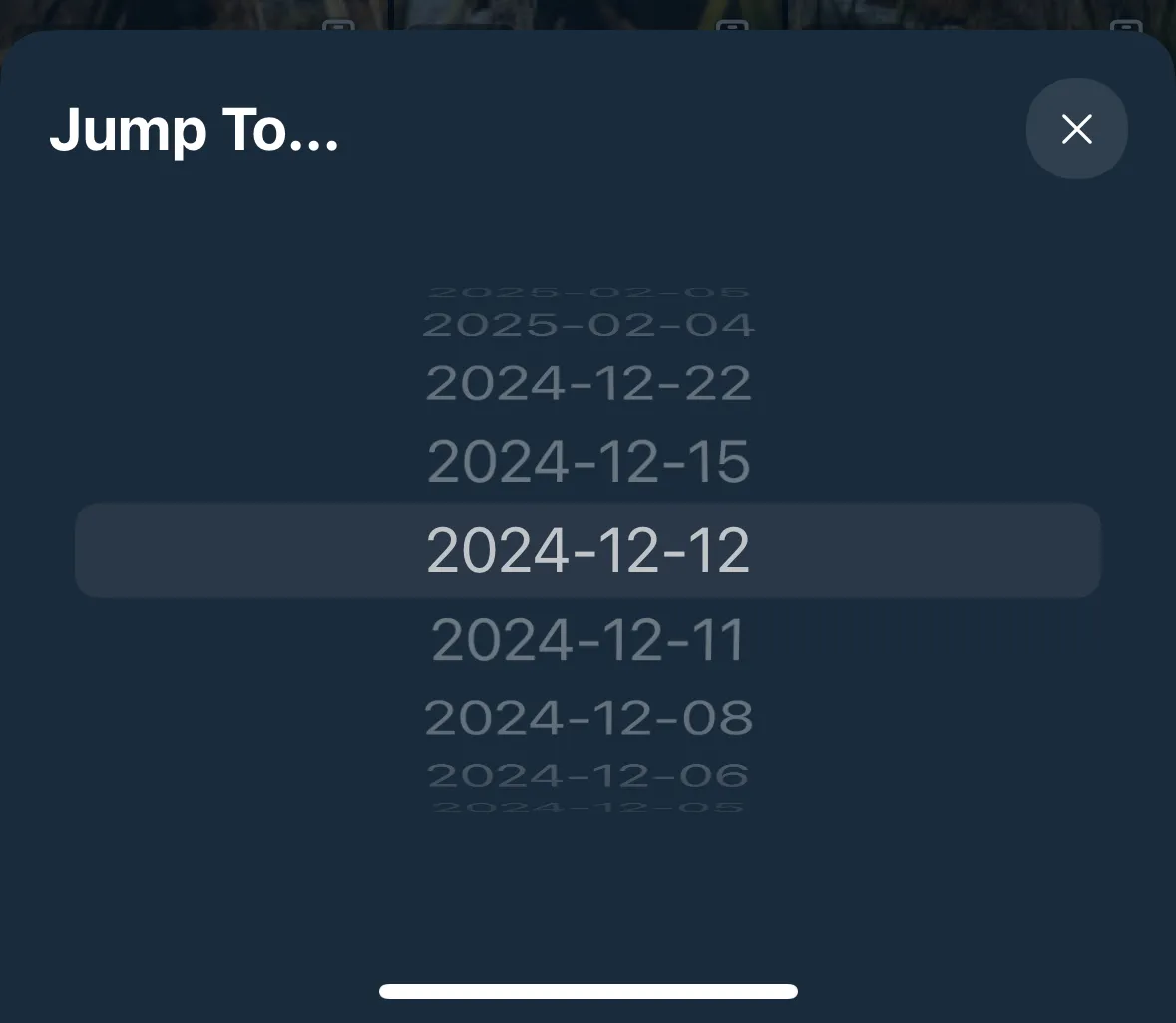
Use the jump tool to skip to a specific point in the gallery. This is useful when you have hundreds or thousands of photos on the card.
Dual Card Slots
If your camera has two memory card slots, use the card selector at the top of the screen to switch between them.