Image Overlays
You can load a custom image to overlay on top of the live view. This replaces the grid overlay — you use either a grid or an image overlay, not both at the same time.
Use Cases
- Composite alignment — overlay a previous shot to match the framing exactly
- Client mockups — overlay a design to match the desired composition
- Logo placement — preview where a watermark or graphic will appear in the final image
Loading an Image
Open the overlay settings and select Image as the overlay type. Tap the “Change overlay” button to choose an image from the Files app. If you store your overlay in the Photos app, you will need to export it to the Files app first.
Use the opacity slider to adjust the overlay’s transparency. Lower opacity lets you see the live view through the overlay more clearly.
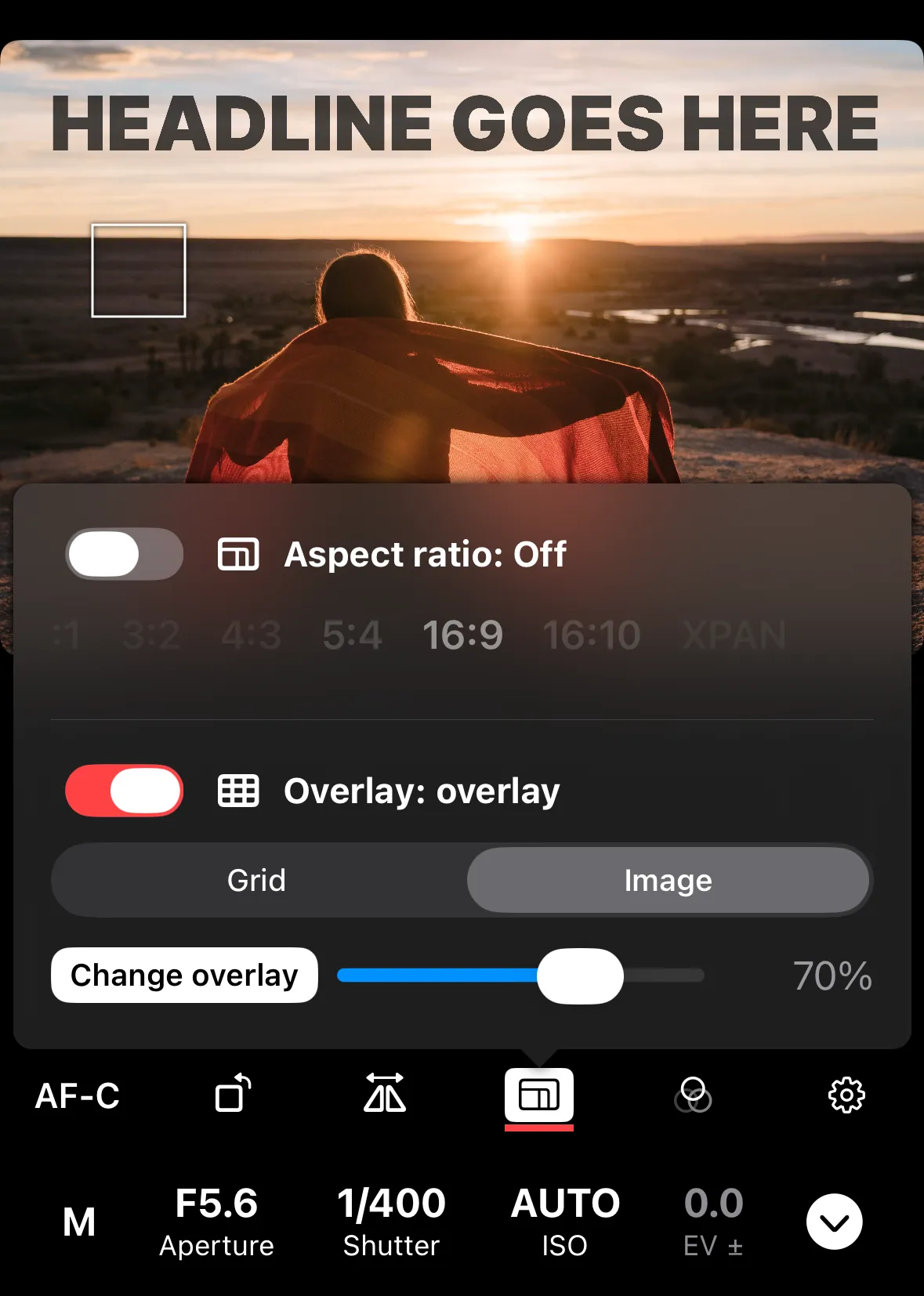
The loaded image and opacity setting are saved between sessions. The overlay does not affect the captured image.