GPS Tagging
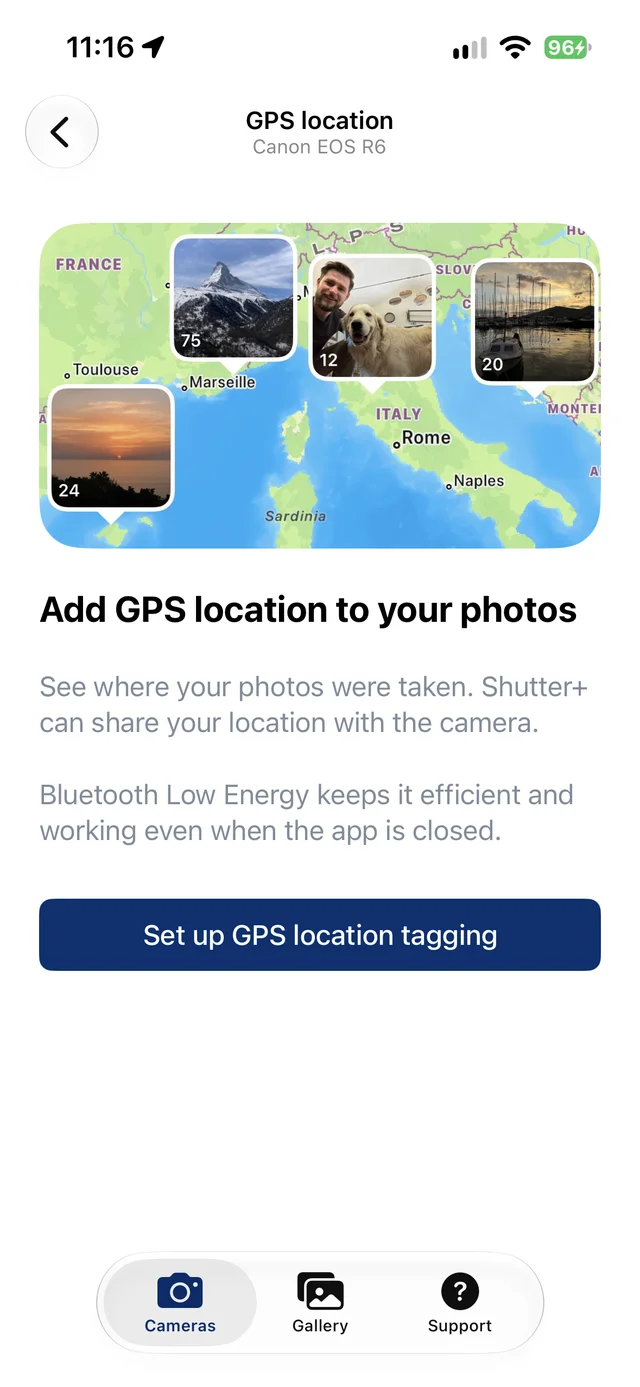
Shutter+ sends your iPhone’s location to your camera over Bluetooth, so the camera embeds GPS coordinates in each photo as you shoot.
When you later import those photos into the iPhone Photos app or Lightroom Classic, you can use the embedded location to find them on a map. The location is saved in the photo on the camera’s memory card, so you can import it through Shutter+ or your usual workflow.
GPS tagging is available on compatible Canon and Sony cameras. Check camera compatibility for your model. It is not available for Fujifilm cameras.
Setting Up GPS Tagging
- Add your camera to Shutter+, then return to the camera list.
- Tap GPS location below Remote Control and Import Photos on your camera’s card.
- Follow the setup prompts to allow location access. Keep Precise Location on and choose Always when asked to allow background location. Allow Bluetooth access if prompted.
- Follow the instructions for your camera to pair it over Bluetooth if needed and enable location sharing in its menus.
- Choose a tagging mode and tap Done.
On Sony, enable Location Information Linkage where the setup guide asks you to. On Canon, select Smartphone under GPS device settings, or enable GPS via mobile under GPS settings. Menu names vary by model; follow the camera-specific instructions in Shutter+.
Tagging Modes
The setting applies separately to each camera:
- Off — stops sending your location to this camera.
- Automatic — recommended. Shares your location during normal shooting and pauses updates during remote control and photo imports for better performance.
- Always — keeps sharing your location during remote control and photo imports. This may slow down live preview and transfers.
Some cameras cannot receive GPS updates while connected over Wi-Fi. For these models, Always is unavailable.
Shooting with the App Closed
Once set up, GPS tagging works even when Shutter+ is closed, your iPhone is locked, or you switch to another app. There is no need to open or restart Shutter+ each time you turn on your camera. Bluetooth Low Energy keeps the connection efficient.
Keep your iPhone nearby with Bluetooth enabled and Always location access and Precise Location turned on. You can take photos using the camera’s own shutter button; remote control does not need to be running.
After turning on the camera, wait a few seconds for it to receive your location before shooting. On Canon, the GPS icon stops blinking when location is available. On Sony, check that the location icon shows location received rather than unavailable.
You can reopen GPS location to see a map of the Last shared location and when it was sent to the camera. If the screen shows a warning about location access, Bluetooth, pairing, or camera GPS settings, follow its instructions to resume tagging.
Finding Photos on a Map
After importing your photos, the embedded GPS coordinates let photo apps show where they were taken:
- iPhone Photos — open an imported photo and swipe up or tap the Info button to see its location. You can also browse your library on a map. See Apple’s guide to browsing photos by location.
- Lightroom Classic — open the Map module to see imported photos plotted using their GPS metadata. See Adobe’s Map module guide.
GPS tagging needs to be enabled and the camera receiving location when you take the photo. It does not add locations to photos taken earlier.