Audio Levels (Canon Only)
Shutter+ displays audio levels from compatible Canon cameras in live view, so you can check sound levels while preparing a shot or recording video. This feature is available only on Canon models that provide audio data to the app.
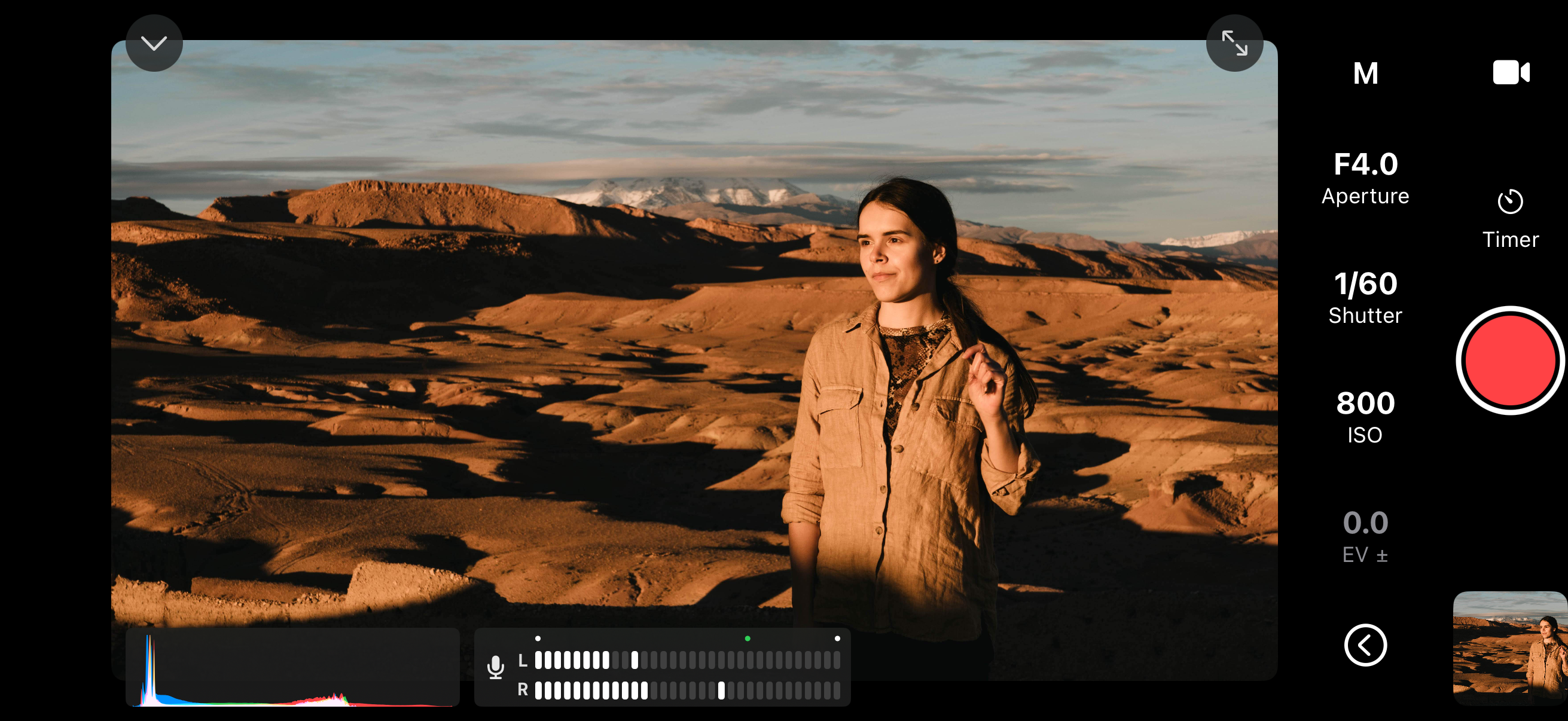
Showing Audio Levels
Connect your Canon camera and switch to Video mode. Audio levels appear automatically when the camera provides them.
To show or hide the meters, open the Settings menu (gear icon) on the remote control screen and toggle Audio Levels. If the gear icon is hidden, tap the arrow next to the exposure controls to show additional controls. The toggle is available when the camera is sending audio level data, and your preference is saved between sessions.
Reading the Meters
The L and R bars show the current level for the left and right channels, with markers for peak levels. As the signal gets louder, the bars extend to the right:
- White — levels up to −12 dB.
- Yellow — levels above −12 dB, approaching the maximum.
- Red — the signal reaches 0 dB, indicating clipping.
If the meters reach red, lower the recording level on your camera to avoid distorted sound. Shutter+ monitors the camera’s audio levels; adjust recording levels using the camera’s audio settings.